
How to Get Missing Outlook Emails to Download Once Retention Has Been Set to All

Outlook can be a great application for managing email, tasks, your calendar and more. However, in recent years, updates have included changes to the default period emails stay in your local Outlook application. The amount of time emails are kept is configured in the retention setting. Originally, retention was set to all by default, meaning keep emails for all of time, unless changed by the tech person managing the settings. In the last few years, regular software updates to Outlook have changed the retention setting to a new default of one year. This is noticeable when you try to locate an older email and it has to be downloaded from the mail server.
This post demonstrates how you can force Outlook to download older emails after updating the retention period to all, and where older emails still fail to download.
How to Get Missing Outlook Emails to Download Once Retention Has Been Set to All
This topic is only for the unique situation where you have updated your retention settings to "All" in Outlook, but older emails continue to fail to populate the appropriate folders. After updating the retention period you should restart Outlook. In theory, upon reopening Outlook, this should force older emails to begin downloading any missing emails.
Unfortunately, there are times when emails do not automatically begin to download as they should. If you also try forcing Outlook to update by clicking on "Send/Receive All Folders" and are still left with the same result, follow the steps below to download your missing emails.

First, it is important to check if your email retention in Outlook is set to All. If this is not done, older emails will not download. To modify your email retention in Outlook, follow the steps in this previous post describing why older emails in Outlook are missing. This post was published as a response to the Outlook updates referenced above where user retention was set to a new default without any warnings or notifications of the change.
Once you have verified the retention setting in Outlook is set to "All", which ensures the emails you want stored locally fall within the retention period, it is still possible that the emails will not automatically download into the appropriate folders. You can verify this by searching for specific older emails and accessing them via search results, but having them fail to show up in their respective folders when you try to access them directly through those folders.
Here is an example of search results where emails from well over a year appear:
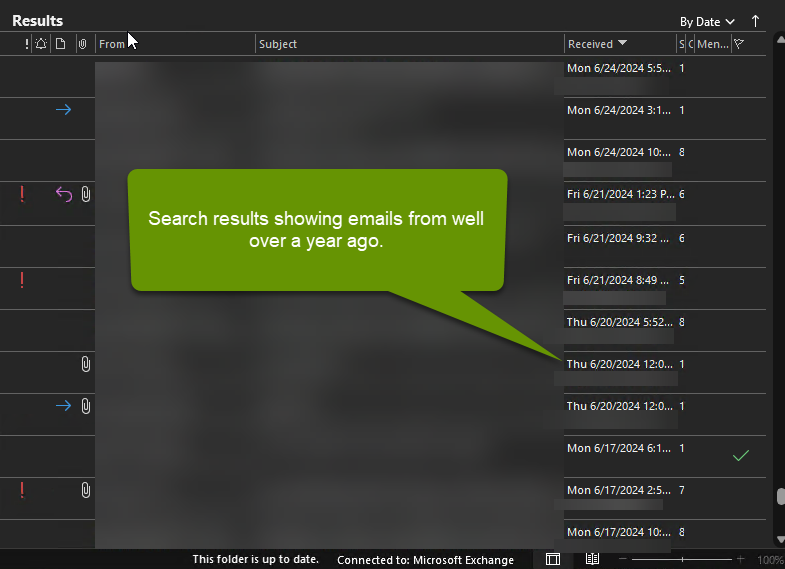
If you have emails that are older than a year showing up in search results, but cannot be accessed via the folder they are stored in, there is one way to force Outlook to update the folder.
- Click on the "Send/Receive" tab in Outlook.
- Click the "Work Offline" button.
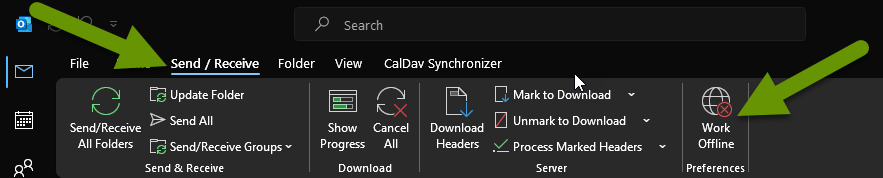
- You can verify you are working offline by checking the status in the lower corner of Outlook.

- After a few seconds, click the "Work Offline" button again to toggle it off. You can tell Outlook has been set to work offline because a box will be around the icon.
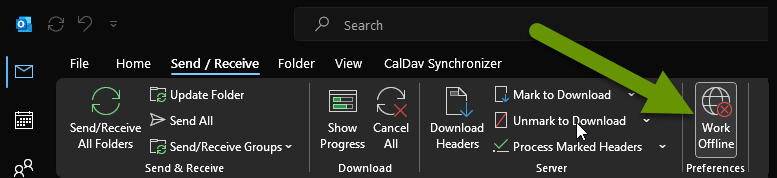
Once Outlook is working online again, it will reconnect to the mail server and begin to download all emails that are now within the retention period. You can watch the progress of different folders updating by checking the status in the bottom of the Outlook window or simply wait for Outlook to state that "All folders are up to date". Once Outlook finishes updating, you will be able to locate older emails by going to the folders they are stored in as well as locating them in a search.
While restarting Outlook may seem like the best way to fix the issue of missing emails, you will likely have far more success toggling the work offline feature in Outlook when the email retention period has been increased. This fix immediately forces all folders to update, unlike restarting Outlook which does not always download older emails after retention settings have been updated.
As always, knowing how to work around software oddities is key in saving time and preventing frustration!